The Content window
The Media Server List
Overview
An Onlyview Media Server is a computer that decodes the videos and renders them on the videoprojectors.
The MEDIA SERVERS tab contains the list of Media Servers that are part of the show. In particular, it shows the status of all the Media Servers, and allows to edit them.
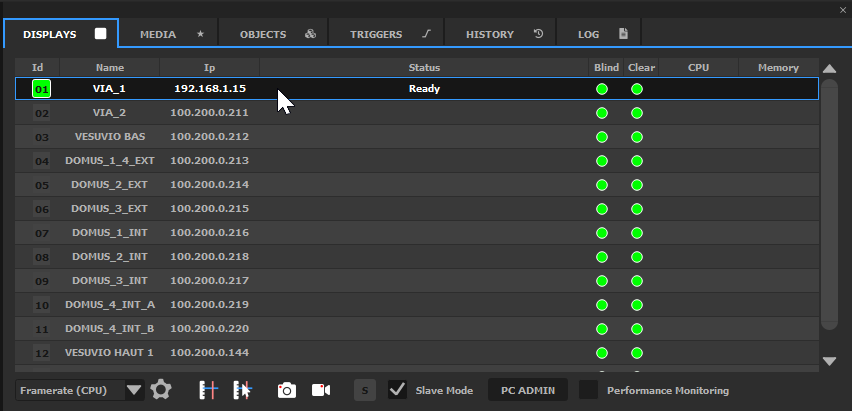
The Media Servers are shown using the following color code:
-
gray : not connected yet
-
orange : loading
-
gray with a green icon: ready, the Media Server is connected and listens to Producer commands
-
red : error
The Media Servers list
The important columns of this table are :
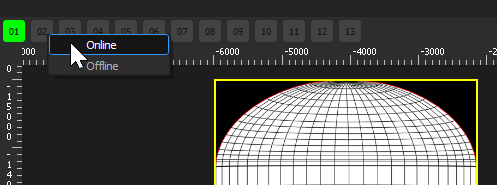
- ID: Each Media Server has an identifier in the show. This identifier is visible at other locations, so that you can monitor the Media Server's status, for instance at the top of the 2D preview:
-
Name: Each Media Server has a user-provided name; this is usually in relation with the zone of the show that is handled by this Media Server, for instance «Towers» or «Floor»
-
Blind: A blind Media Server (black icon) will not receive any network command.
-
Clear: A Media Server that is cleared (black icon) will behave normally, and receive network commands, but will remain fully black.
-
CPU & Memory: Performance monitoring, see the full reference section.
To edit an existing Media Server, double-click on it. The Edit
Media Server dialog opens.
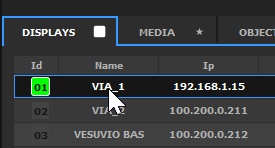
To add a new Media Server to the show, you can either double-click on an empty
zone, or use the Add Screen button of the Edit Screen
dialog. Media Servers that are connected on the network will automatically
appear in the list; click on "+" to add them to your show.
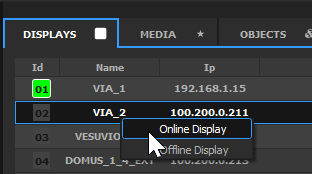
Although Media Servers are usually put Online using Ctrl-O, you can also Online/Offline them individually using the right-click menu.
Patterns
Onlyview provides several built-in patterns. They are either used to help with the calibration process, check the video signal, or monitor the performance during installation.
The important patterns are:
-
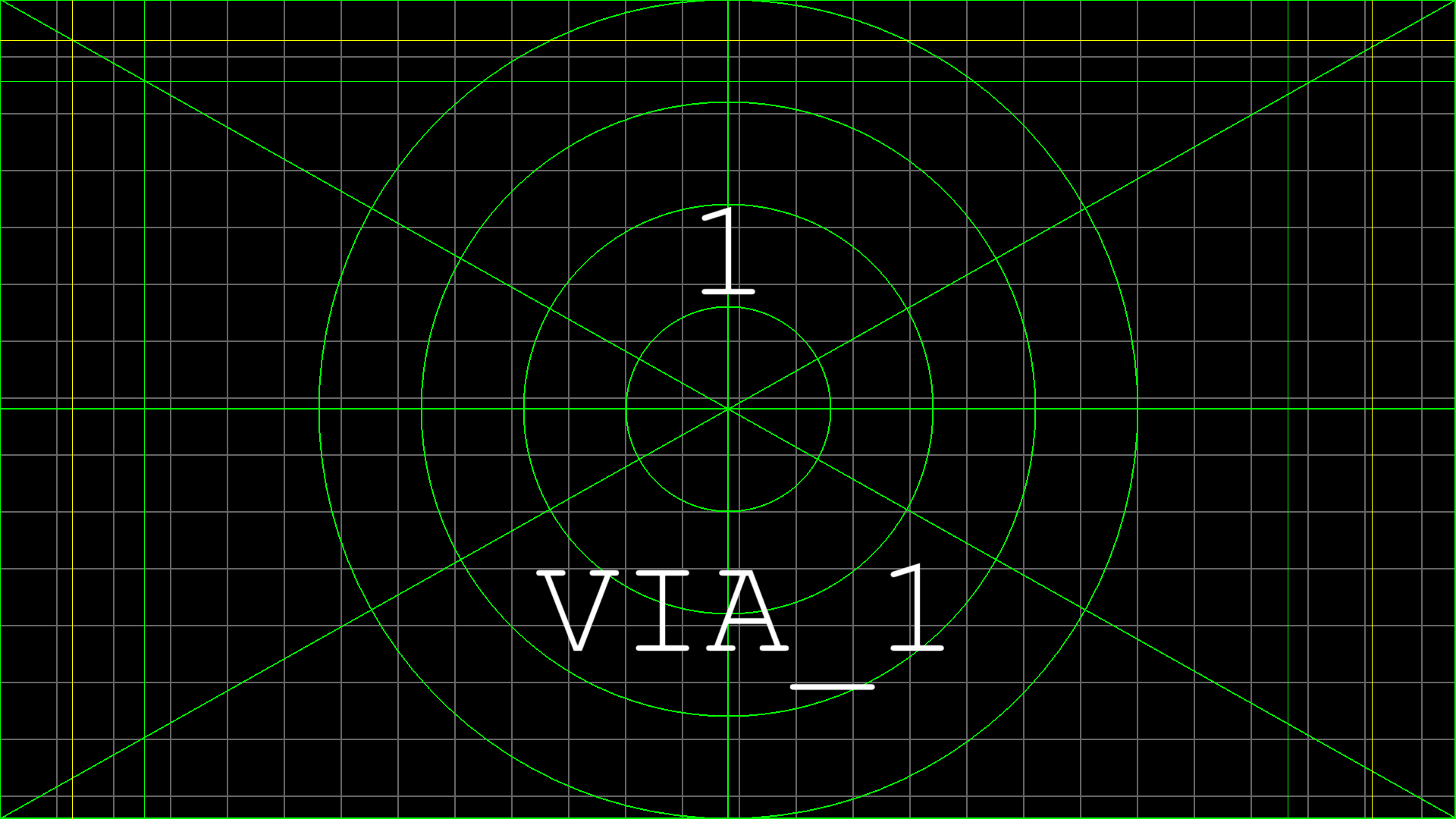
Small Pattern. Used for aligning the projectors, and to finetune the softedges. It consists in:
-
A gray grid of 75 pixels, to check the alignment with the other projector
-
A color outline, to see the limits of the projector
-
The ID and the name of the Media Server
-
When manual softedge is used (here: on all sides except the bottom), extra lines are drawn, that should overlap with the other projector to get a good first approximation, before finetuning.
-
The width and the color or the lines of this mire are configurable:
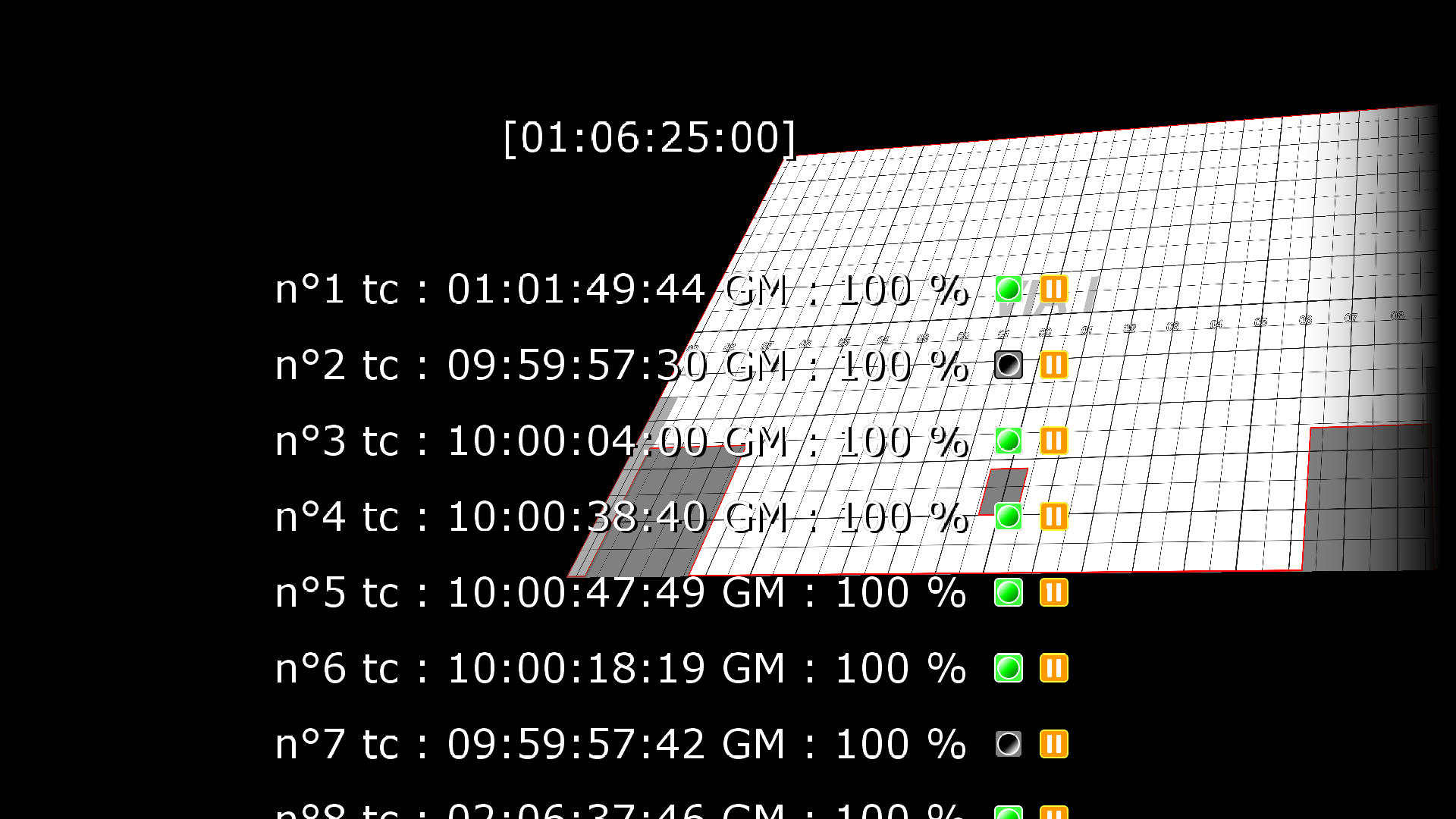
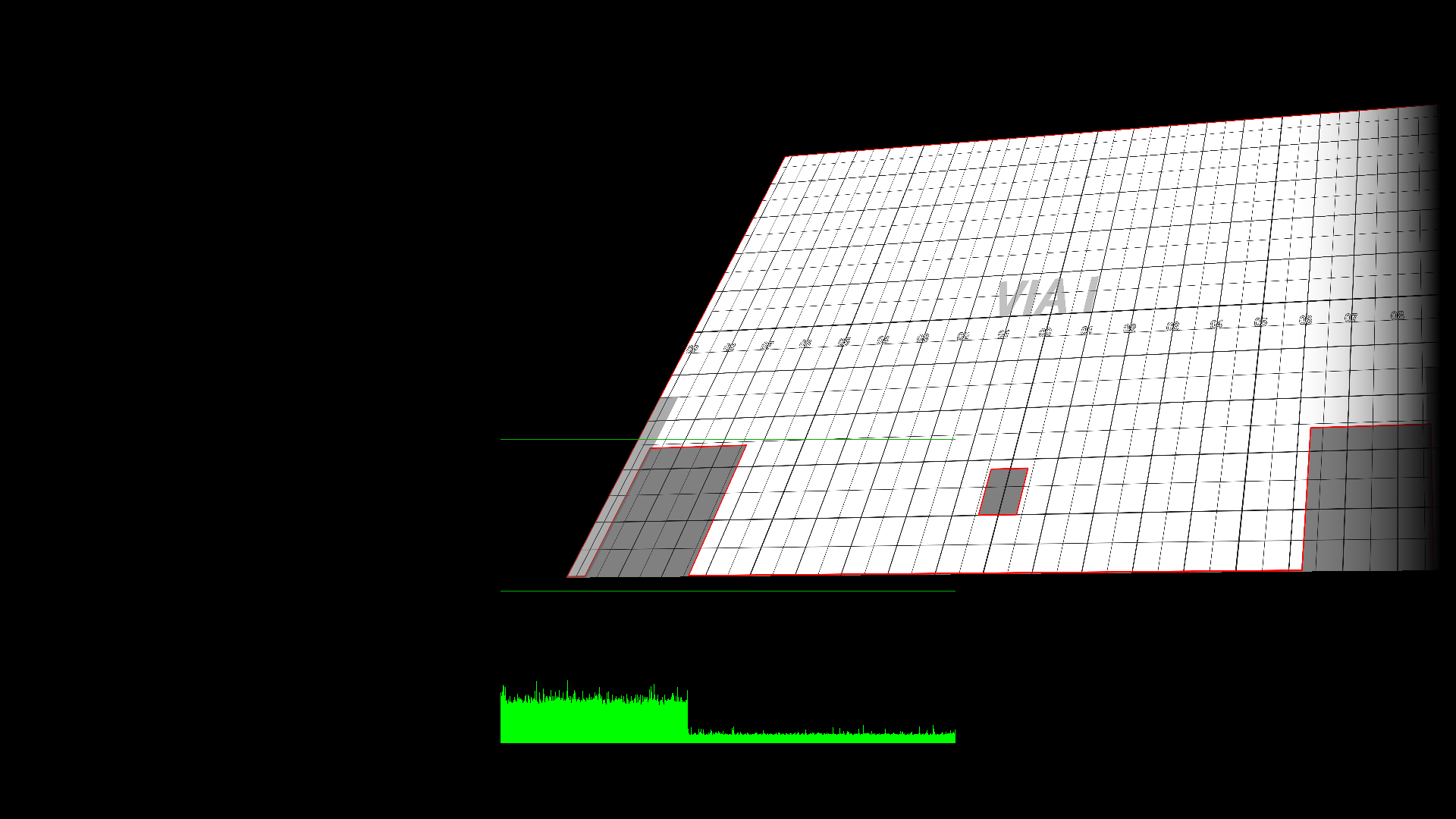
- On Screen Display: Shows the status of all the different timelines
- Framerate (CPU): Time spent on each frame.
The middle horizontal line corresponds to the duration of 1 video frame. For instance, at 50Hz, it corresponds to 20ms. The vertical lines are the time spent by the CPU on each frame, so the green graph should always remain below the middle line. Otherwise, the video will stutter.
The top horizontal line corresponds to the duration of 2 video frames (so 40ms at 50Hz). This is useful when working with big 25Hz media on a 50Hz projector, because in this case, displaying at only 25Hz may be acceptable.
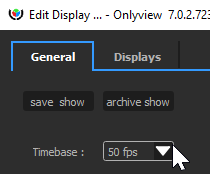
The framerate used as a base is the one of the show: File -> Show options -> Timebase.
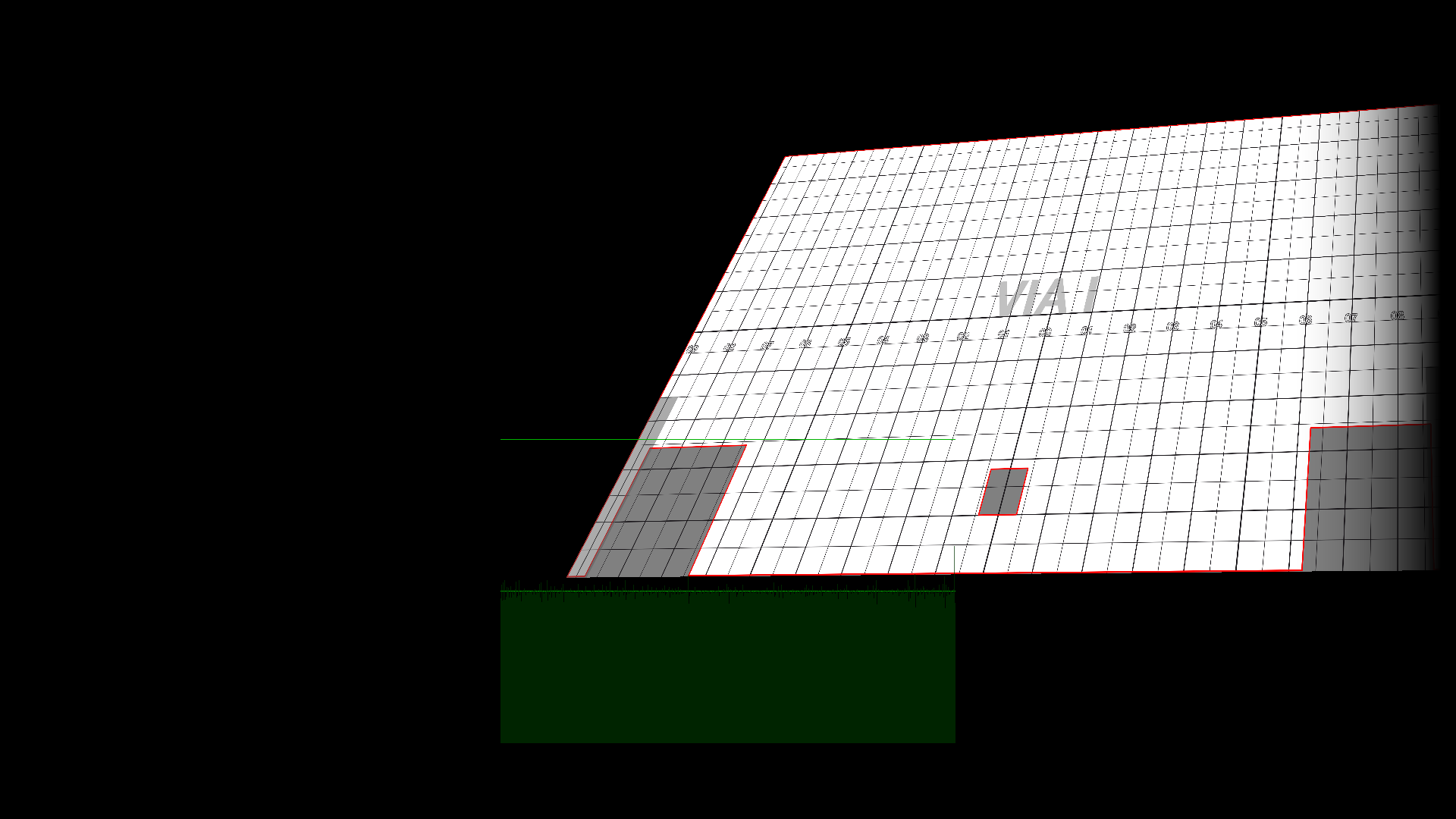
- Framerate (GPU): This is similar to the CPU graph, except it's the time use by the graphic cards, including «presentation» ( waiting for the vertical sync of the projector). As such, it is most of the time on the middle line. If you start dropping frame due to performance issue, the graph will start jumping to the top line.
- White: just a full white
PC Admin

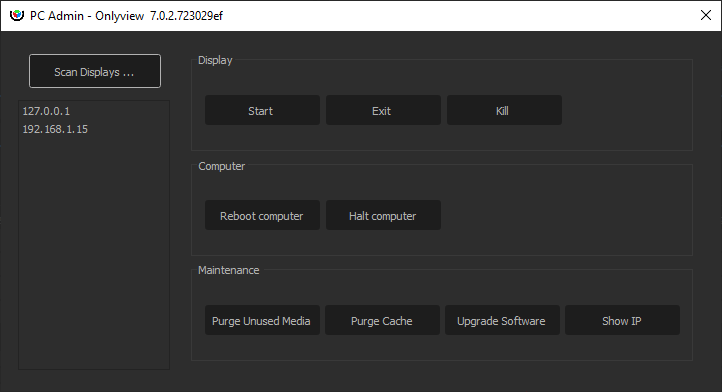
The PC Admin is used to control parts of the Media Server that are not related to the show: Starting and stopping it, rebooting the computer, remote upgrades...
-
"Scan" scans the network for connected computers. Onlyview's Watchdog must be running on the Media Server for the scan to be successful.
-
Start/Exit/Kill: Starts or stops display.exe. Kill is only used when display.exe is stuck.
-
Reboot/Halt: Reboots or stops the computer
-
Purge unused media: Media Server stores the medias in a cache (usually D:/cachev3). When removing old medias from the show (maybe because the creative team provided you with a newer version), the cache should be cleared to reclaim SSD space.
-
Purge cache: fully clears the cache. This includes the medias that are currently used, and also the cache from other shows.
-
Upgrade software: uploads a new version of display.exe to the remote computers
-
Show IP: The IP adresses of the Media Servers will be shown in fullscreen